
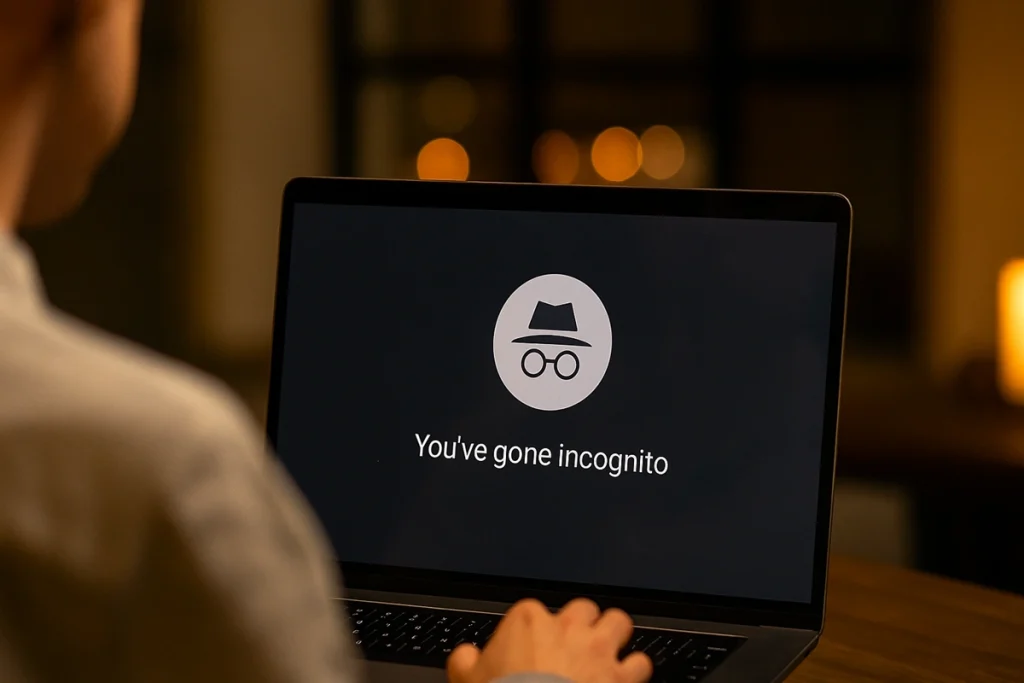

It’s surprising how many people think Incognito hides everything about them online, but that’s not true — and experts say you should know why.
You’ll avoid saved history, cookies, and autofill locally, yet your ISP, employer, visited sites, and advanced trackers can still see your activity and link sessions. Keep learning what Incognito actually protects, what it doesn’t, and the practical steps experts recommend to strengthen your privacy.
What Is Incognito Mode?
Incognito mode (called “private” or “private browsing” in some browsers) prevents your browser from saving local records like search and page history, cookies, and form entries once you close the window.
It doesn’t hide your activity from websites you visit, your employer or school network, or your internet service provider, so those parties can still see visited pages and requests.
In the next section, we’ll show exactly what local data is removed and which browsing-history elements remain visible to others, with concrete examples you can use to judge its limits.
1. What Browsing History Data Is Visible With Incognito Mode?
Think of private browsing as a cleaner that wipes certain local traces when you finish a session: your browser won’t keep a record of the sites you visited, the cookies sites dropped to remember you, or data you typed into web forms after you close all incognito windows.
In incognito mode (also called private browsing), your browsing history isn’t saved locally, so pages you visited won’t appear in later history lists. Cookies placed during the session are removed when you exit, which prevents sites from retaining login and preference data on your device. Form entries and search text are similarly cleared.
Practical takeaway: Use Incognito to avoid leaving local traces on shared devices, but remember this doesn’t hide activity from networks, employers, or the sites themselves.
2. What Browsing History Data Is Visible With Incognito Mode?
You’ve just read how private browsing clears local traces like history, cookies, and form entries when you close a session — but that only tells part of the story about what others can still see.
In incognito mode, your device won’t retain browser history, but outside parties still can. Your internet service provider can log every site you visit and must hand that data over if subpoenaed.
Sites you visit see your IP address and can link activity if you log in, so you aren’t anonymous to them. School or employer networks monitor traffic even in private windows.
To hide your IP and obscure browsing beyond your device, use a virtual private network; a reputable VPN encrypts traffic and prevents your ISP from easily reading visited sites. Practical takeaway: Incognito helps locally, not network-wide.
Is Incognito Mode Safe?
What private browsing actually hides? Incognito mode clears local browsing data, but it doesn’t hide your IP address or prevent websites or your ISP from seeing your activity. You can close the window, and someone using your device won’t see history, yet servers and networks still record pages you visited.
Downloads and saved files remain on disk, including malware you might accidentally keep. For stronger privacy, consider a vpn service that masks your IP address and encrypts traffic, preventing on-path observers from reading browsing data.
Remember: VPNs help with anonymity and security on public Wi‑Fi, but they don’t make you invincible. Combine a reputable VPN with updated software, cautious downloading, and good passwords to reduce risk and browse more confidently.
#The Myth
Many people assume that private browsing makes them invisible online, but that’s not what Incognito Mode was built for.
You see the incognito icon and think your session is secret, yet private browsing only prevents local history and cookies from persisting on your device.
Your employer can still monitor traffic on corporate networks, and your internet provider can log the sites you visit.
Websites continue to deploy tracking cookies and fingerprinting techniques during your session, so advertisers and analytics firms can often link activity across visits.
In short, Incognito Mode reduces some local traces but doesn’t provide anonymity. If you need true privacy, use a VPN, Tor, or privacy-focused browsers and extensions, and remember to clear cookies and disable third-party trackers.
#What Experts Say
When experts weigh in, they make a simple distinction: Incognito Mode protects against local prying but not against network or web tracking.
You should know it clears local history and form data, so anyone using your device won’t see your sessions, yet websites and servers still see your IP and activity.
Experts note third-party cookies may be blocked, reducing cross-site ad tracking, but browser fingerprinting can still link your sessions by device and configuration.
For stronger privacy, they recommend privacy-focused browsers or adding a reputable VPN to hide your IP and ISP details.
Expect trade-offs: some sites break or slow down with a VPN.
Practical takeaway: use Incognito for local privacy; combine tools for broader anonymity.
How to Turn On Incognito Mode
Now, let’s walk through how to open private browsing across popular platforms so you can try it yourself.
On a computer, you’ll use Chrome’s Incognito or Firefox’s Private Window, and on an iPhone or Android device, you’ll open Safari’s Private tab or Chrome/Firefox apps’ private modes.
I’ll give step‑by‑step actions for each browser and device, plus quick tips like where downloads and bookmarks are saved.
#Private Browsing in Google Chrome
You can launch Chrome’s Incognito mode in seconds to keep your local browsing history and cookies from being saved on your device. Open Chrome, click the three vertical dots at the top-right, and choose “New Incognito Window.” Or use the shortcut: Ctrl+Shift+N on Windows/Linux/ChromeOS, ⌘+Shift+N on a Mac.
You’ll see a dark background and a spy icon confirming incognito mode.
What it does and a practical tip:
- Local privacy: Chrome won’t store visited pages, form data, or cookies after you close the window.
- Tracking protection: Enable the toggle to block third-party cookies to limit cross-site tracking.
- Web browsing note: Sites can still log activity server-side, so consider extensions or a VPN for stronger privacy.
#Private Browsing on Your Android Device
On your Android phone, turning on Chrome’s Incognito mode takes only a couple of taps and gives you quick local privacy by preventing the browser from saving your history, form entries, and cookies after you close the tab.
To enable private browsing in Google Chrome, open the app, tap the three dots at the top-right, and choose “New incognito tab.” That opens an incognito window where your browsing session won’t be stored locally.
When you finish, close the incognito window to end the session; leaving it open lets someone else view your activity.
Practical takeaway: treat incognito mode as short-term privacy for shared devices, not anonymity from networks or websites, and always close the tab when you’re done.
#Private Browsing in Mozilla Firefox
If you prefer Firefox’s terminology, its private browsing feature—called “Private Window”—gives you temporary local privacy by keeping your history, searches, and cookies out of the browser once you close the window. To open one, click the three horizontal lines in the top-right corner and choose New Private Window, or press Ctrl+Shift+P on Windows (Command+Shift+P on a Mac).
The private window shows a dark‑purple background and a mask icon, and it explains limitations on that homepage.
Firefox’s enhanced tracking protection blocks third-party tracking across sites by default, so cross-site cookies are restricted regardless of other settings. Practical takeaway: use Private Window for local privacy and rely on enhanced tracking protection to reduce third-party tracking while you browse.
#Private Browsing in Apple Safari
If you prefer Apple’s ecosystem, Safari offers a straightforward private browsing mode that keeps your local activity out of the browser once you close a private tab or window.
To open a private window on a Mac, choose File > New Private Window or press Command + Shift + N; you’ll see a dark gray search bar indicating the private window.
On a Mac, you can also adjust privacy settings: open Safari > Preferences > Privacy and enable Prevent cross-site tracking to block many third-party trackers. These controls limit local traces and reduce cross-site profiling, but they don’t hide your traffic from networks or websites.
Use private browsing for temporary sessions, and combine it with strong passwords and, if needed, a VPN for greater online privacy.
#Private Browsing on Your iPhone
How do you keep a browsing session private on your iPhone? Open the Safari browser, tap the tab icon (two overlapping squares) at the bottom right, then select “Private” at the bottom left to enter private mode.
While in private browsing, Safari won’t save your browsing history and limits stored cookies for that session.
To exit, tap “Private” again and return to normal tabs. Always remember to close private tabs when you’re finished; closing them guarantees cookies and other site data from that session are deleted, and the activity is hidden from your device’s history.
This process protects local privacy on your phone, but it won’t block network tracking or hide visits from websites or your ISP.
Why Do People Use Incognito Mode?
People often turn on incognito mode to keep specific browsing sessions from being recorded on their device, such as when shopping for a surprise gift or using a public computer.
You’ll use incognito mode for a private search when you don’t want items added to your browser history, which helps prevent surprises like targeted ads or visible purchase records.
It’s practical on a public device or a borrowed computer to avoid leaving saved logins, cookies, or autofill entries.
You might also run a private search to see search results uncolored by past behavior, for testing a website or comparing prices.
Browse Online Confidently
When you want to browse online confidently, rely on tools that actually protect you rather than leaving it to incognito mode alone; Incognito clears local history and cookies but won’t hide your activity from websites, your employer, or your internet provider.
Use Incognito browsing for quick privacy from local users, but pair it with a VPN when you need true network-level protection. A McAfee VPN encrypts traffic, helping prevent ISPs and Wi‑Fi snoopers from collecting activity data, while Private Internet Access offers similar privacy-focused features if you prefer alternatives.
For stronger defense, combine a VPN with endpoint security like McAfee Total Protection to cover malware, identity monitoring, and device vulnerabilities.
Practical takeaway: don’t rely on Incognito alone — layer protections.
To Wrap It All Up
Incognito mode helps keep local browsing private by not saving history, cookies, or form data, but it doesn’t hide your activity from websites, ISPs, employers, or network operators. If you need stronger privacy, combine it with a reputable VPN, a privacy-focused browser, tracker-blocking extensions, and up-to-date endpoint security.
Want real anonymity? Expect additional tools and trade-offs. Decide what threat you’re defending against, then layer protections accordingly—simple, deliberate, and effective.
FAQs
-
What Does Incognito Mode Actually Do?
Incognito mode deletes your local browsing history, cookies, and form data after you close the window. It prevents your device from storing activity, keeps sessions isolated, and stops logged-in states from carrying over. Incognito mode only protects local data and does not hide network-level activity.
-
What Does Incognito Mode Not Hide?
Incognito mode does not hide your IP address, internet traffic, or activity from your ISP, employer, or school. It also does not hide behavior from the websites you visit. Incognito mode only clears local history and cannot block tracking done at the network or website level.
-
Does Incognito Mode Hide Your IP Address?
Incognito mode does not hide your IP address. Your ISP, employer, school, and visited websites can still see your IP because the browser only clears local data. To hide your IP, you must use tools such as a VPN, proxy server, or privacy-focused network.
-
What Are Common Myths About Incognito Mode?
Common myths about incognito mode include believing it hides your IP address, blocks tracking, protects you from hackers, or makes you anonymous online. Incognito only deletes local data. It does not stop websites, ISPs, or networks from monitoring your online activity.
-
Can Incognito Mode Prevent Tracking?
Incognito mode cannot prevent tracking from websites, advertisers, ISPs, employers, or schools. It only removes local browsing data and does not block cookies, fingerprinting, or network-level monitoring. Preventing tracking requires tools like VPNs, tracker blockers, or privacy-focused browsers.
-
Does Incognito Mode Protect You From Hackers?
Incognito mode does not protect you from hackers. It only clears local browsing data and does not provide encryption, network security, or malware protection. Protection from hackers requires tools such as firewalls, antivirus software, secure passwords, and encrypted connections.
